Matrix with Voice Chat - Unraid, Nginx Proxy Manager, Docker Compose, Continuwuity
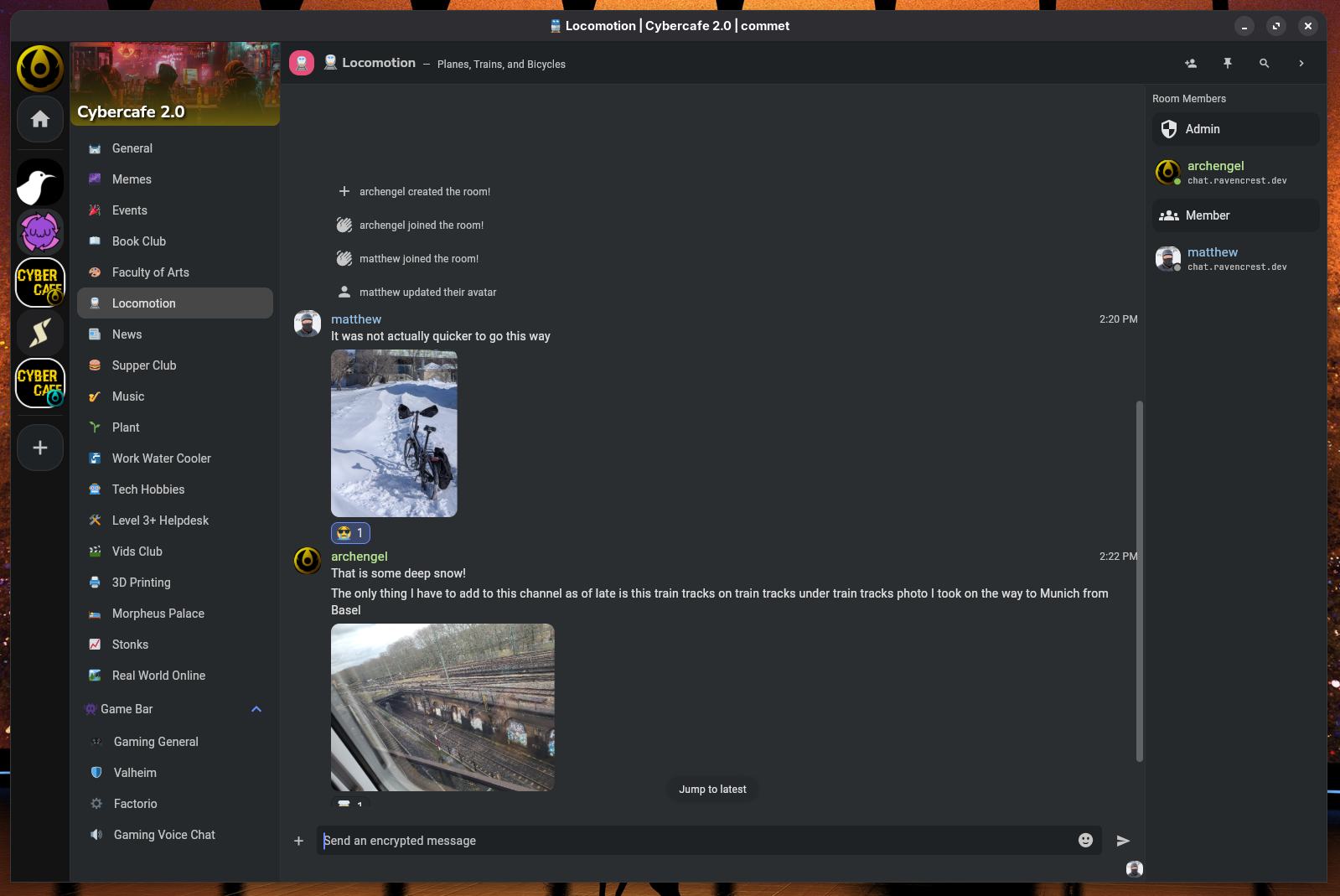
Alright, my first published tutorial ever? I think anyway, regardless, lets get into it. No need to write my backstory so that you can get to the recipe 🤦.
In this tutorial I have written Voice Chat, as I think that is what it is commonly called online, but in reality these are full on video calls, with screen sharing and more.
- Do note that as of this tutorial creation date, 2026 Feb 27, screen sharing does not transmit sound in any Matrix client just yet.
Ingredients
- Unraid
- Nginx Proxy Manager
- Docker Compose
- Continuwuity
Set Up Domain and Subdomains
Set up your domain with whatever provider you use. This tutorial does not cover how to do that.
Then set up your subdomains, I used:
chat
As my main Matrix subdomain. This is also the subdomain for the Homeserver where your users will sign up, and use that address to log in.
livekit
Used for Voice Chat.
matrix-rtc
Used for livekit's built in TURN server (also Voice Chat).
Continuwuity Docker Compose
First up, for the Matrix server itself, I used Continuwuity. Seemed easier than the alternatives at the time, good support chat on their matrix server, and I found it to be a good idea to not centralize further by going with Element's offering.
Add New Stack, Compose File - If this is unfamiliar, learn how to set up Docker Compose on Unraid first, then come back to this tutorial.
Here is the Docker Compose I used for the Continuwuity server.
# Continuwuity

services:
    homeserver:
        ### If you already built the Continuwuity image with 'docker build' or want to use a registry image,
        ### then you are ready to go.
        image: forgejo.ellis.link/continuwuation/continuwuity:latest
        restart: unless-stopped
        ### Remember, Outside the container:Inside the container.
        ports:
            - 8448:6167
        volumes:
            - db:/var/lib/continuwuity
        environment:
            CONTINUWUITY_SERVER_NAME: subdomain.domain.whatever # EDIT THIS
            CONTINUWUITY_DATABASE_PATH: /var/lib/continuwuity
            CONTINUWUITY_PORT: 6167
            ### Increase this depending on your needs and server capacity.
            ### It is the max server image/video/whatever upload size.
            CONTINUWUITY_MAX_REQUEST_SIZE: 20000000 # in bytes, ~20 MB
            CONTINUWUITY_ALLOW_REGISTRATION: 'true'
            ### A registration token is required when registration is allowed.
            ### This will be a secret word that you give out to new users attempting to register an account on your Homeserver - they will need this!
            CONTINUWUITY_REGISTRATION_TOKEN: 'SecretPassword' # EDIT THIS
            #CONTINUWUITY_YES_I_AM_VERY_VERY_SURE_I_WANT_AN_OPEN_REGISTRATION_SERVER_PRONE_TO_ABUSE: 'true'
            CONTINUWUITY_ALLOW_FEDERATION: 'true'
            CONTINUWUITY_ALLOW_CHECK_FOR_UPDATES: 'true'
            CONTINUWUITY_TRUSTED_SERVERS: '["matrix.org"]'
            #CONTINUWUITY_LOG: warn,state_res=warn
            CONTINUWUITY_ADDRESS: 0.0.0.0
            CONTINUWUITY_NEW_USER_DISPLAYNAME_SUFFIX: '✨️'
            ### This must match your livekit/RTC url - I used livekit.domain.whatever.
            ### Turns out that a lot of places use the words/names livekit, matrix-rtc, webrtc all interchangeably - so you too can use whatever you want, but I have gone with livekit for this tutorial.
            CONTINUWUITY_RTC_FOCUS_SERVER_URLS: '[{ type = "livekit", livekit_service_url = "https://livekit.domain.whatever" },]'
    #
    ### Uncomment if you want to use your own Element-Web App.
    ### Note: You need to provide a config.json for Element and you also need a second
    ###       Domain or Subdomain for the communication between Element and Continuwuity
    ### Config-Docs: https://github.com/vector-im/element-web/blob/develop/docs/config.md
    # element-web:
    #     image: vectorim/element-web:latest
    #     restart: unless-stopped
    #     ports:
    #         - 8009:80
    #     volumes:
    #         - ./element_config.json:/app/config.json
    #     depends_on:
    #         - homeserver

volumes:
    db:
Nginx Proxy Manager - Matrix Server Federation
Alrighty, from there, lets pop into Nginx Proxy Manager, good ole NPM.
Details Tab
Domain Name: subdomain.domain.whatever
Forward Hostname / IP: 192.168.x.x
Forward Port: 8448
Options:
- Cache Assets:
True - Block Common Exploits:
True - Websockets Support:
True
Custom Locations Tab
I have read somewhere that trailing slashes can be quite important for these things, so keep that in mind.
In both of the last two, you must add your domain, as well as the livekit domain.
Location: /_matrix
Forward Hostname / IP & Port are the same as the Details Page.
Location: /_continuwuity/
Forward Hostname / IP & Port are the same as the Details Page.
Location: /.well-known/matrix/client
Forward Hostname / IP & Port are the same as the Details Page.
⚙️ Gear Icon:
     location /.well-known/matrix/client {
     return 200 '{
	"m.homeserver": {
	"base_url": "https://subdomain.domain.whatever"
	},
	"org.matrix.msc4143.rtc_foci": [
    {
      "type": "livekit",
      "livekit_service_url": "https://livekit.domain.whatever"
    }
  ]
}';
     default_type application/json;
     add_header Access-Control-Allow-Origin *;
     add_header Access-Control-Allow-Methods 'GET, OPTIONS';
  }
Location: /.well-known/matrix/server
Forward Hostname / IP & Port are the same as the Details Page.
⚙️ Gear Icon:
location /.well-known/matrix/server {
     return 200 '{"m.server": "subdomain.domain.whatever:443"}';
     default_type application/json;
     add_header Access-Control-Allow-Origin *;

}
SSL Tab
Request a Cert.
Force SSL: True
HTTP/2 Support: True
⚙️ Gear Icon / Advanced Tab
Custom Nginx Configuration
  location / {
    proxy_pass http://127.0.0.1:8448;
    proxy_set_header Host $host;
    proxy_set_header X-Forwarded-For $remote_addr;
    proxy_set_header X-Forwarded-Proto https;
    add_header Access-Control-Allow-Origin *;
  }
Router / Firewall Port Forwarding
This tutorial will not cover how to change the settings on your router - you will have to learn that elsewhere.
For my setup, I needed to open the following port for Matrix Federation.
TCP/UDP 7881
If you want a private server where you cannot chat with the rest of the Fediverse (people on other servers), turn off federation in the Compose, and don't bother opening the 7881 port.
While we are in the Router config stuff, lets also open up the LiveKit ports for Matrix voice chats.
You will need:
TCP 7881
UDP 50100 - 50200
Take a Testing Break
Navigate to your favorite Matrix client.
(I used Commet mainly when I wrote this tutorial due to its similarity to Discord, but Cinny is also an excellent choice. ElementWeb/ElementX will work just fine as well.)
Then register a new account with your Homeserver (your newly set up subdomain.domain.whatever).
- As of the writing of this tutorial, 2026 Feb. 27, some of the only places you can register accounts are at element.io, matrix.org, and cinny.in, with Commet still working on that feature.
Sign in - save your Encryption/Recovery Key somewhere where you won't lose it - turns out that key is super helpful.
If you can sign in, great! Try adding a Space like #space:continuwuity.org or a room like #matrix-news:matrix.org.
Setup Voice Chats / LiveKit / Matrix-rtc
OK, now that most of it works, lets try the tricky one. Or at least it was tricky for me, hopefully this will either work for you, or help you get going the right direction!
LiveKit Docker Compose
Here is the docker compose I used for the lk-jwt-service.
This thing connects (or authorizes or something) the connection between LiveKit and the Continuwuity Matrix server. Don't ask me, just know that it is important, you can read about it here.
LiveKit Key: A Keyname, I used a random alphanumeric string
LiveKit Secret: A secret key, I used a random generated 20+ character string
- You will need both of these for the livekit.yaml after the docker compose step.
The network is one area I had issues with, and ended up putting both services on HOST. I have left the suggested ports commented out in case you would like to attempt that.
services:
  lk-jwt-service:
    image: ghcr.io/element-hq/lk-jwt-service:latest
    container_name: lk-jwt-service
    environment:
      - LIVEKIT_JWT_BIND=:8081
      - LIVEKIT_URL=wss://livekit.domain.whatever # Change this to your domain of course.
      - LIVEKIT_KEY=put some key name here.
      - LIVEKIT_SECRET=generate something secure for here.
		### These Full Access domains allow users from those homeservers to create/start voice calls. If you want only people from your homeserver, remove any others. I have left matrix.org in there as I have users from there as well.
      - LIVEKIT_FULL_ACCESS_HOMESERVERS=domain.whatever, matrix.org
    restart: unless-stopped
    network_mode: "host"
#    ports:
#      - "8081:8081"

  livekit:
    image: livekit/livekit-server:latest
    container_name: livekit
    command: --config /etc/livekit.yaml
    restart: unless-stopped
    volumes:
      - /mnt/user/appdata/livekit/livekit.yaml:/etc/livekit.yaml:ro
    network_mode: "host" # /!\ LiveKit binds to all addresses by default.
    # Make sure port 7880 is blocked by your firewall to prevent access bypassing your reverse proxy
    # Alternatively, uncomment the lines below and comment `network_mode: "host"` above to specify port mappings.
#    ports:
#      - "127.0.0.1:7880:7880/tcp"
#      - "7881:7881/tcp"
#      - "50100-50200:50100-50200/udp"
### Add these to docker-compose for use of the internal TURN server ###
#      - "3478:3478/udp"
#      - "50300-50400:50300-50400/udp"
LiveKit YAML
Aright, console into your server.
cd /mnt/user/appdata/
mkdir livekit
cd livekit
nano livekit.yaml
Then enter the following:
port: 7880
bind_addresses:
  - ""
rtc:
  tcp_port: 7881
  port_range_start: 50100
  port_range_end: 50200
  use_external_ip: true
  enable_loopback_candidate: false
room:
  auto_create: true
keys:
  LIVEKIT_KEY_change_to_match: LIVEKIT_SECRET_change_to_match

### add this to livekit.yaml for internal TURN server ###
turn:
  enabled: true
  udp_port: 3478
  relay_range_start: 50300
  relay_range_end: 50400
  domain: matrix-rtc.domain.whatever
Nginx Proxy Manager 2 - Electric Boogaloo
Or, as its commonly known - The LiveKit Nginx stuff.
Details Tab
Domain Name: livekit.domain.whatever
Forward Hostname / IP: 192.168.x.x
Forward Port: 7880
Options:
- Cache Assets:
false - Block Common Exploits:
True - Websockets Support:
True
Custom Locations Tab
Do Nothing Here
SSL Tab
Request a Cert.
Force SSL: True
HTTP/2 Support: True
⚙️ Gear Icon / Advanced Tab
OK, so probably a ton of this is unnecessary, but after hours of troubleshooting and trying lots of things I ended up with this, and it seems to work, so I have not tried to clean it up yet. (I had a hard time narrowing down what and where the issues were due to the lack of good error messages, and lack of documentation online).
    # for lk-jwt-service
    location ~ ^/(sfu/get|healthz|get_token) {
        proxy_pass http://192.168.x.x:8081$request_uri;
        proxy_set_header X-Forwarded-For $remote_addr;
        proxy_set_header X-Real-IP $remote_addr;
        proxy_set_header Host $http_host;
        proxy_buffering off;

        # Remove any CORS headers coming from element-call-jwt
    proxy_hide_header Access-Control-Allow-Origin;
    proxy_hide_header Access-Control-Allow-Methods;
    proxy_hide_header Access-Control-Allow-Headers;
    proxy_hide_header Access-Control-Expose-Headers;

     # Single consistent CORS header set
    add_header Access-Control-Allow-Origin * always;
    add_header Access-Control-Allow-Methods "POST, OPTIONS" always;
    add_header Access-Control-Allow-Headers "Authorization, Content-Type, Accept, Content-Length, Accept-Encoding, X-CSRF-Token" always;
    add_header Access-Control-Expose-Headers "Authorization, Content-Type, Content-Length" always;
    add_header Access-Control-Allow-Credentials "true" always;
    add_header Access-Control-Max-Age 86400 always;

    if ($request_method = OPTIONS) {

        add_header Access-Control-Allow-Origin "*" always;
        add_header Access-Control-Allow-Methods "POST, OPTIONS" always;
        add_header Access-Control-Allow-Headers "Authorization, Content-Type, Accept, Content-Length, Accept-Encoding, X-CSRF-Token" always;
        add_header Access-Control-Max-Age 86400 always;
        add_header Content-Length 0 always;
        add_header Content-Type text/plain always;
        return 204;
    }
    }

    # for livekit
    location / {
        proxy_pass http://192.168.x.x:7880$request_uri;
        proxy_set_header X-Forwarded-For $remote_addr;
        proxy_set_header X-Real-IP $remote_addr;
        proxy_set_header Host $http_host;
        proxy_buffering off;

        # websocket
        proxy_http_version 1.1;
        proxy_set_header Upgrade $http_upgrade;
        proxy_set_header Connection $connection_upgrade;
    }

    # for uhhh, more livekit I guess
      location ^~ /livekit/jwt/ {
      proxy_set_header Host $host;
      proxy_set_header X-Real-IP $remote_addr;
      proxy_set_header X-Forwarded-For $proxy_add_x_forwarded_for;
      proxy_set_header X-Forwarded-Proto $scheme;

      # JWT Service running at port 8081
      proxy_pass http://localhost:8081/;
    }

    location ^~ /livekit/sfu/ {
      proxy_set_header Host $host;
      proxy_set_header X-Real-IP $remote_addr;
      proxy_set_header X-Forwarded-For $proxy_add_x_forwarded_for;
      proxy_set_header X-Forwarded-Proto $scheme;

      proxy_send_timeout 120;
      proxy_read_timeout 120;
      proxy_buffering off;

      proxy_set_header Accept-Encoding gzip;
      proxy_set_header Upgrade $http_upgrade;
      proxy_set_header Connection "upgrade";

      # LiveKit SFU websocket connection running at port 7880
      proxy_pass http://192.168.x.x:7880/;
      #trailing slash matters here and in path, trims the path out of the passed url
    }
Important Addition
OK, so I had all kinds of issues with this proxy_set_header Connection "upgrade"; business.
Turns out I needed to create a http_top.conf in my Nginx Proxy Manager files.
- Your NPM appdata may be saved in an alternate location, or with a different name.
- I also had to add a 'custom' folder, but it may already exist on your install.
Console into your server.
cd /mnt/user/appdata/Nginx-Proxy-Manager-Official/data/nginx
mkdir custom
cd custom
nano http_top.conf
Then paste in the following:
map $http_upgrade $connection_upgrade {
    default upgrade;
    ''      close;
}
Nginx Proxy Manager - Part 3
So this last bit is for the internal TURN server, I am not actually sure it is functioning properly with my setup, so this part may or may not be useful for you.
Details Tab
Domain Name: matrix-rtc.domain.whatever
Forward Hostname / IP: 192.168.x.x
Forward Port: 3478
Options:
- Cache Assets:
false - Block Common Exploits:
True - Websockets Support:
True
Custom Locations Tab
Do Nothing Here
SSL Tab
Request a Cert.
Force SSL: True
HTTP/2 Support: True
⚙️ Gear Icon / Advanced Tab
Do Nothing Here
Testing Voice Calls
You can use this to test if LiveKit is working for you. You will need to:
"catch a room token from the jwt service. I get one by starting a call in a room with the Firefox dev network console open, filtering for “/sfu/get” URLS and catch the following line:
POST https://livekit.sspaeth.de/sfu/get. The response to that is a JSON blob containing the jwt token or by using testmatrix."
-- Source: Spaetzblog
Another method to test is to navigate to livekit.domain.whatever and on a success you should receive a blank page that says OK.
However, in my experience, the best way to test is to load up a matrix client and make a voice call, then do the same from your phone or another device.
- watch out for the Waiting for Media bug, even if you get in a call it may not be working!
- If you are getting errors, pop open the developer console and the networking tab in your browser to take a look in there to get some more info.
Celebrate!
Hopefully this has helped you set up your own Matrix server with video calling, and if not, hopefully it helps you get closer to that goal.
Troubleshooting
Removing a Stuck User from a Voice Call / Voice Channel / Voice Chat
Source: Spaetzblog
This has happened to me a few times, so it is handy to know how to fix that.
- Type into the room chat:
/devtools - Click
Explore room state - Click
org.matrix.msc3401.call.member - Click on each Member (check stuck members first)
- Check if the
"content": {}section is empty - If not empty, click
Editand delete everything within - Repeat until all members are removed from call
- Check if the
Joining a Room and all the messages are encrypted?
Try verifying your session from another device (open a matrix client on your phone).
- This does not always work, and can be oddly flaky due to how Matrix itself works right now, from what I understand.
Try entering your Encryption / Recovery Key. - This has worked almost every time for me, but even so, I have found a few odd messages from the past to be stubborn.
Commet is loading forever, can't join rooms?
At the writing of this tutorial, just close commet and open it again - honestly.
Why Matrix?
Encrypted
Encrypted messaging is great for keeping our data private, our freedom from oppressive governments and practically cyberpunk levels of dystopian corporations.
Decentralized
Decentralization is wonderful because it keeps the server loads down on big servers, spreading out the load and if one server goes down, the network remains.
Federated
Federation is great, because when we are decentralized, we can still communicate on the same platform, even across servers.
Self-Hosted / Non-Corporate Hosted
Self-Hosting is important to keep our messaging free and open, not slowly enshitified with ads, subscriptions and data mining.